Starting with SQL Server 2017, SQL Server now runs on Linux. I installed SQL 2017 on a Ubuntu 17.04 VM. It was very easy and very fast. I would estimate the average time it takes to install SQL Server on Servers I work with is around 25 minutes. Installing SQL on Ubuntu probably took 5 minutes. I am not that familiar with Linux or Bash commands so I spent some time researching them to see what I was doing as I did the install.
Ubuntu has an “Advanced Packaging Tool (APT)” that I used to install SQL Server. The apt command is used to interact with the Advanced Packaging Tool. The first step is to import the GNU Privacy Guard (GPG) Key. This is a protection to insure that you are installing the real software from the real provider. This is telling APT not to install any packages that are not signed by the private key holder. In this case Microsoft has the private key, so APT won’t install a package that is not from Microsoft.
- import the public GPG key.
curl https://packages.microsoft.com/keys/microsoft.asc | sudo apt-key add -
2. Register the Microsoft SQL Server Ubuntu repository. The repository is a list of software that is compiled for the version of Linux you are using.
sudo add-apt-repository "$(curl https://packages.microsoft.com/config/ubuntu/16.04/mssql-server.list)"
one thing you will encounter is you will need to type in your password after some commands. the odd thing is it doesn’t prompt you for the PW. it just sites there and waits for you to enter it. here I wasn’t sure what was going on, so I just hit enter without the password. 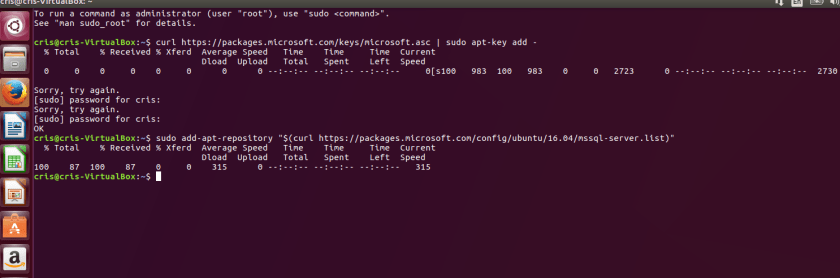
3. Now you are ready to install SQL server. This is Amazingly fast and easy. Run the following command to install SQL Server
sudo apt-get update
sudo apt-get install -y mssql-server
This will start the install.
When install is finished, install will prompt you to run setup.

4. To finish installation, run setup.
sudo /opt/mssql/bin/mssql-conf setup
Since this is a Community Technology Preview version(CTP) I don’t think it matters which one you choose. I went with 2.
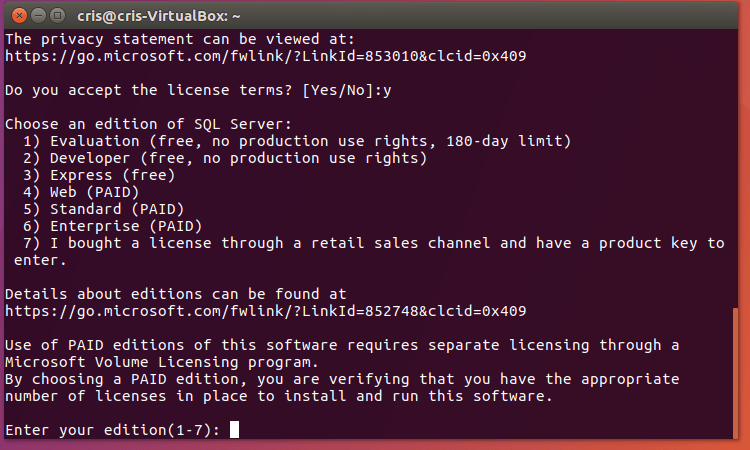
5. Follow the prompts and setup your accounts.
6. When configuration is done you can see if the SQL Service is running by:
systemctl status mssql-server
Currently SSMS is not available for Linux. Hopefully it will be in the near future. You can use SSMS on a windows client to connect to SQL Server on Linux. SQL Command is available for Linux at this time. The installation procedure is the same as installing SQL Server.
- Import the GPG Keys.
curl https://packages.microsoft.com/keys/microsoft.asc | sudo apt-key add -
2. Register the repository.
sudo add-apt-repository "$(curl https://packages.microsoft.com/config/ubuntu/16.04/prod.list)"
3. Install.
sudo apt-get update
sudo apt-get install -y mssql-tools unixodbc-dev
4. Now we can connect to SQL Server. 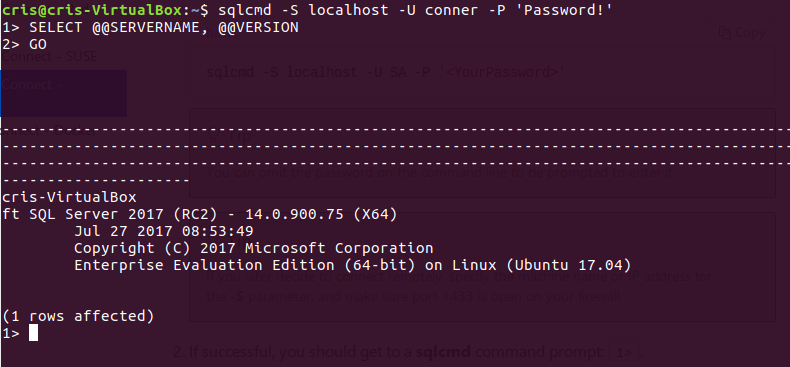
 Cris Conner's SQL Blog